Linux🐧
- Jean-Christophe Miler
- Linux , Open source , Technology
- 15 september 2025
Table of Contents
Linux Script
Launch update command with a bash script
How to update easly your linux with this bash script>
First create a .sh file>
sudo vi update.sh
Second modify the file and insert this command, that depend linux your have, by example for Fedora linux>
sudo dnf upgrade --refresh -y && sudo dnf autoremove -y
For Debian>
sudo apt update && sudo apt full-upgrade -y
Save the file and enter this command>
sudo chmod +x update.sh
And for launch the script>
./update.sh
And that’s it 😃
Linux command
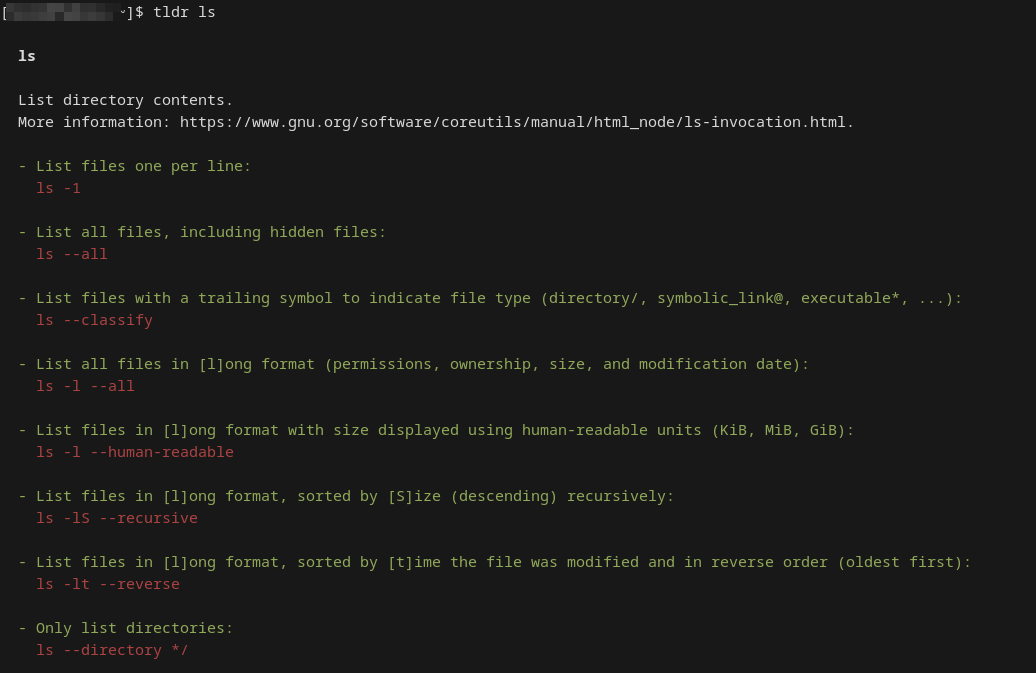
TLDR Command
The tldr command provides concise, easy-to-read documentation for various Linux commands. It displays a brief summary of the command, its usage, and common options, making it easier to understand and use complex commands.
You can install tldr on your system by running the following command:
sudo dnf install tldr # For Fedora/RedHat systems
Install it on other Linux distributions using npm or pip3. For more information, consult the project
Once installed, you can use tldr to view documentation for a specific command, like this:
tldr ls
Creating a bootable USB from an ISO file in Linux
- Prepare the USB Drive: Insert your USB drive and identify its device name using the command:
lsblk
- Unmount the USB Drive: If the USB drive is mounted, unmount it with:
sudo umount /dev/sdX1
- Write the ISO to the USB: Use the dd command to create the bootable USB. Replace path/to/your.iso with the path to your ISO file:
sudo dd if=path/to/your.iso of=/dev/sdX bs=4M status=progress
Be very careful with the of parameter to avoid overwriting important data.
- Sync and Eject: After the process completes, ensure all data is written to the USB with:
sync
Then safely eject the USB drive:
sudo eject /dev/sdX
Journalctl
journalctl is a command-line tool for Linux systems that allows users to view and manage system log messages stored in the systemd journal. It provides a powerful way to monitor and troubleshoot system issues.
# View the most recent log messages
journalctl

# View log messages from the past hour
journalctl --since "1 hour ago"

# View log messages from the past day
journalctl --since "yesterday"

# Search for log messages containing a specific keyword
journalctl | grep keyword

# Follow new log messages as they are generated
journalctl -f

# Show the system log messages in a concise format
journalctl -u systemd
Disk Space Full?
Check file system disk space usage
df -h
Show largest subdirectories
du -sh * | sort -hr | head
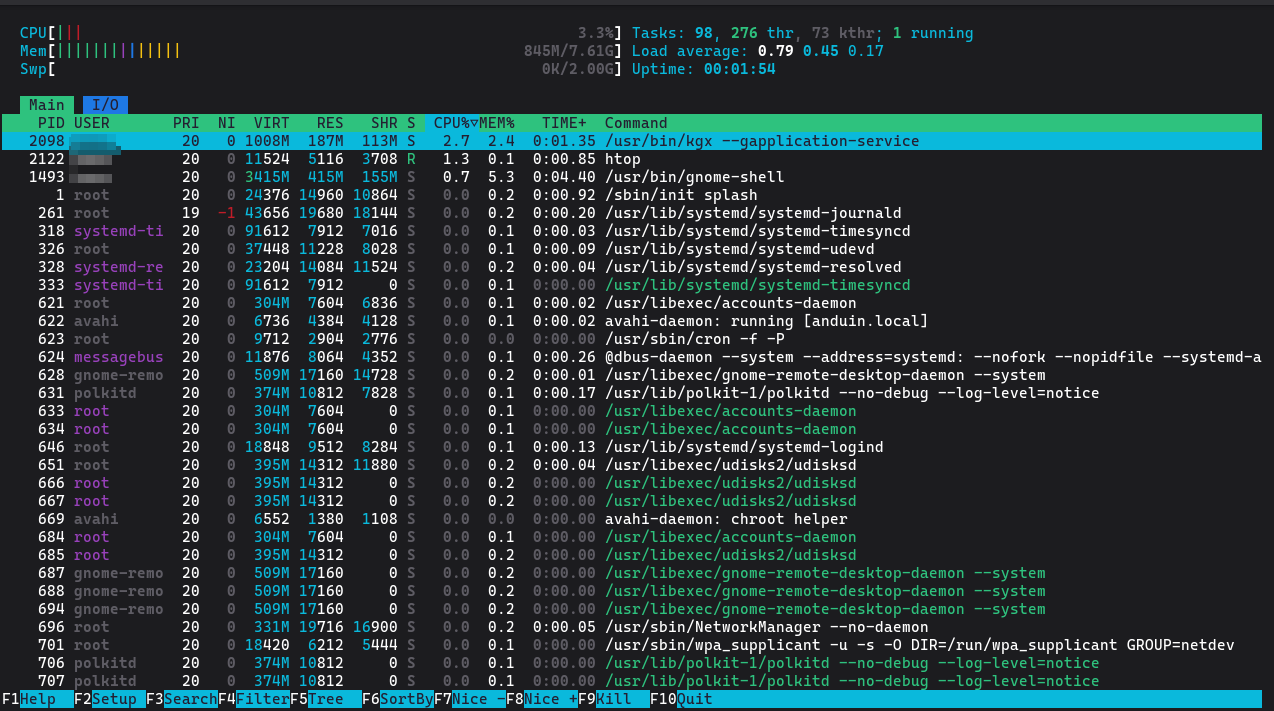
Htop Command
htop is an interactive version of the top command in Linux. It provides a dynamic view of running processes, allowing you to sort, filter, and manage them in real-time.
htop
Linux Tools
Ncdu
ncdu is a disk usage analyzer and viewer that provides a detailed breakdown of disk usage on a Linux system. It is a command-line tool that offers a user-friendly interface for navigating and managing disk space.
# Run ncdu to analyze disk usage on the root file system
ncdu /

# Run ncdu to analyze disk usage on a specific directory
ncdu /home/user

# Run ncdu with the -q option to disable interactive mode and output results to a file
ncdu -q / > disk_usage.txt
Ristretto
Ristretto is a lightweight and fast image viewer for the XFCE desktop environment. It is designed to provide a simple and efficient way to view, manage, and manipulate image files on Linux systems.
For the help command>
ristretto -h

Usage:
  ristretto [OPTION…]

Help Options:
  -h, --help               Show help options
  --help-all               Show all help options
  --help-gtk               Show GTK+ Options

Application Options:
  -V, --version            Version information
  -f, --fullscreen         Start in fullscreen mode
  -s, --slideshow          Start a slideshow
  -S, --settings           Show settings dialog
  --display=DISPLAY        X display to use
This will open the specified image file in Ristretto.
ristretto image.jpg
All the images in the folder
ristretto *