🚀 How to Boot Ventoy USB Drive in VirtualBox on Arch Linux
- Jean-Christophe Miler
- Open source , Linux
- December 10, 2025
Table of Contents
Booting a Virtual Machine (VM) from a physical USB drive, like a Ventoy multi-boot drive, requires a special workaround on VirtualBox, especially on Linux hosts like Arch. This is because VirtualBox does not natively recognize physical USB drives as bootable hard disks.
This guide will walk you through creating a “Raw Disk” VMDK file that links directly to your USB drive, and crucially, how to handle the common Permission Denied errors that Linux users face.
Prerequisites
- A host machine running Arch Linux (or similar distribution like Manjaro).
- VirtualBox installed.
- A Ventoy USB drive ready with your ISO files.
- Your user must have sudo privileges.
Step 1: Secure Device Access and Permissions
The most common point of failure is permissions. Your user account must be able to access the raw USB disk device (/dev/sdX) for VirtualBox to function.
Add Your User to Required Groups: You need to be in the
diskgroup to access raw block devices, and in thevboxusersgroup for general VirtualBox USB access.sudo usermod -aG disk $USER sudo usermod -aG vboxusers $USERVerify Group Membership:
groups $USER(Ensure you see both
diskandvboxusersin the output.)Crucial Step: Relog (or Reboot): Group changes are not active until you start a new session. Log out of your current desktop session and log back in (or reboot the system).
Step 2: Identify and Unmount the USB Drive
Identify the Device Path: Insert your Ventoy USB drive and use
lsblkto find its device name (e.g.,sdb,sdc). Look for the size that matches your drive.lsblk -fThe full path will be
/dev/sdX(e.g.,/dev/sdb). Be absolutely sure you select the correct device!Unmount the Drive: The drive must be unmounted on the host system so VirtualBox can gain exclusive access. Replace
sdXwith your device letter.sudo umount /dev/sdX*
Step 3: Create the Raw Disk VMDK Link
We use the VirtualBox command-line utility, VBoxManage, to create a small file (.vmdk) that acts as a secure pointer to the physical USB drive.
Execute the
VBoxManagecommand: Run this command in your terminal, replacing the filename and the/dev/sdXpath.VBoxManage createmedium disk \ --filename "$HOME/VirtualBox VMs/VentoyBoot.vmdk" \ --format=VMDK \ --variant RawDisk \ --property RawDrive=/dev/sdXExample: If your device is
/dev/sdb:VBoxManage createmedium disk --filename "$HOME/VirtualBox VMs/VentoyBoot.vmdk" --format=VMDK --variant RawDisk --property RawDrive=/dev/sdbVerify Ownership (If Necessary): If you were having permission problems previously, ensure the new VMDK file is owned by your user:
chown $USER:$USER "$HOME/VirtualBox VMs/VentoyBoot.vmdk"
Step 4: Configure the Virtual Machine
Launch VirtualBox Manager (as your normal user). Do not use
sudoto launch VirtualBox.Create or Select a VM:
- It’s recommended to create a new VM (e.g., Linux, 64-bit).
- When prompted for a Hard Disk, choose “Do not add a virtual hard disk.”
Add the VMDK Link:
- Select your VM and go to Settings -> Storage.
- Under the Controller: SATA section, click the Add Hard Disk icon.
- Select “Choose existing disk” and navigate to the
VentoyBoot.vmdkfile you created in Step 3.
Optional: Enable EFI Boot:
- Go to Settings -> System -> Motherboard tab.
- Check the box for “Enable EFI (special OSes only).” Ventoy is highly compatible with UEFI/EFI, making this a good choice.
Step 5: Launch and Enjoy!
- Start the Virtual Machine.
- The VM will attempt to boot from the physical Ventoy drive.
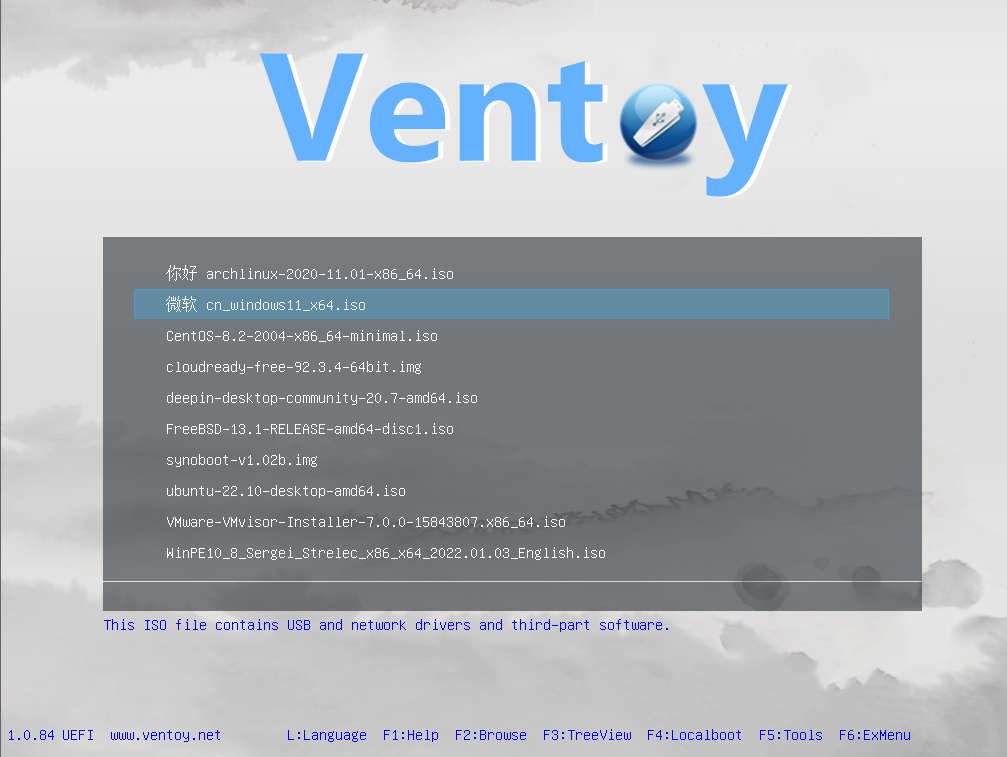
- You should now see the familiar Ventoy boot menu listing all your ISO files!
Warning: When using raw disk access, the VM has complete control over the physical USB device. Use caution and ensure you have the correct drive selected.
Go to the project